UPDATE HUD ver 0.15
The new version of the HUD has some improvements you guys have been asking for.
- The informatiomn will now have an easier time loading to the HUD. It should load for any dragon you click even without having to scan them.
- Scanning has been changed to ONLY detect the dragons and eggs you own on the region.
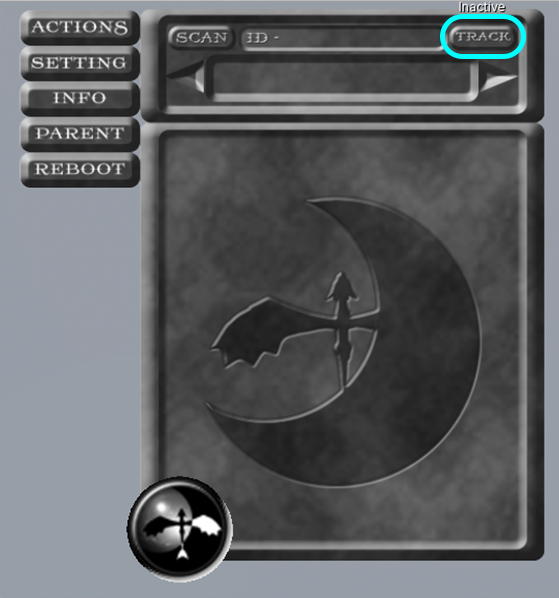
- The tracking Indicator (green triangle) has had it's setting change. There is no longer a mode button for it, and now it is simply a track button. This button turns the indicator on and off and that is it.
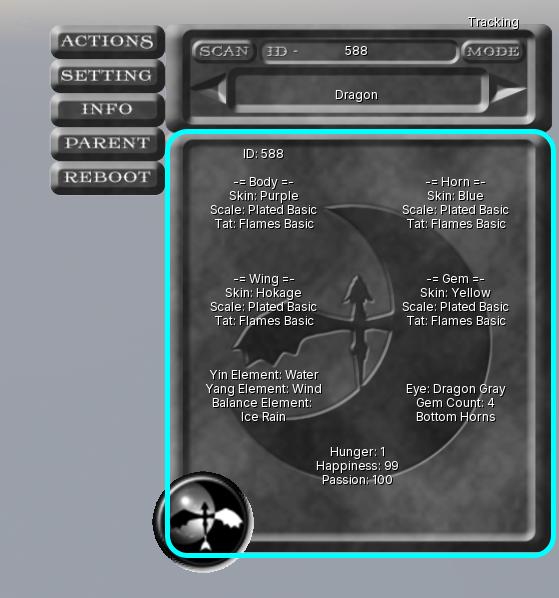
- The info page will now display the gender of the targeted dragon or egg.
You can grab a new version HUD on the main dragon region under the beta bundle vendor.
Rogue's Retreat
Welcome to the Dragon Rogues Beta Test.
The main goal of this beginning testing time is to make sure all
of the dragon's timers are functioning correctly.
This is a time where I am looking for input about how things
work or are laid out. What isn't doing it for you,
what could be done better? What is missing?
During Beta, Food and Happy treats (NOT GONNA STAY NAMED THAT) will be automatically added to your account.
So currently you will not need to worry about having them for your dragons
To begin with, the explanation of the current HUD.
When you get your beta bundle, it will include the
control HUD for the dragons.
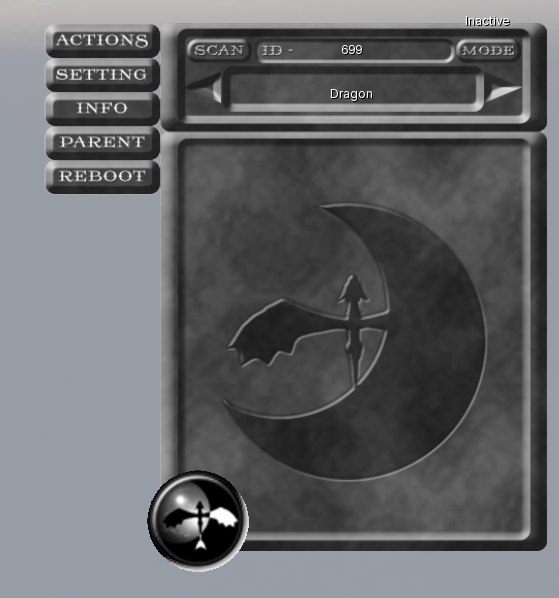
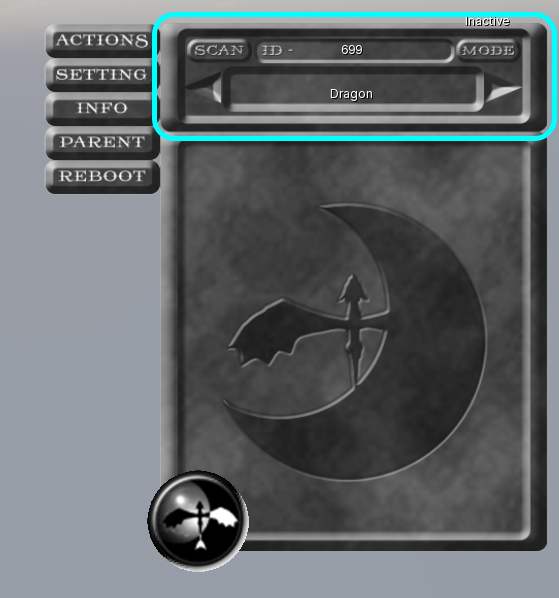
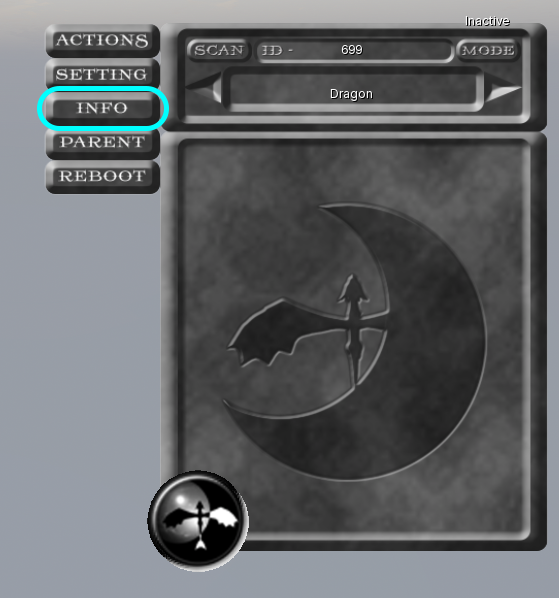
The First Thing to make note of is the top section of the HUD.
This section has a "Scan" button. This is going to be your
first stop on your journey through this HUD.
Clicking the Scan button will chat out "Scan Initiated" in local.
When it completes the scan, it will chat out "Scan Complete".
This will scan ALL dragons in the region and cache them to your HUD.
In the future there will be filtering options to not scan every dragon,
but for now, it will scan them all.
When the scan is completed, you will see an ID number filled in at the top,
and the name of the dragon in the field under the ID.
You will also notice a Green Marking arrow hovering over the targeted dragon.
We will circle back to that part later. The important part is that
whatever ID number is listed at the top is the active dragon you have selected.
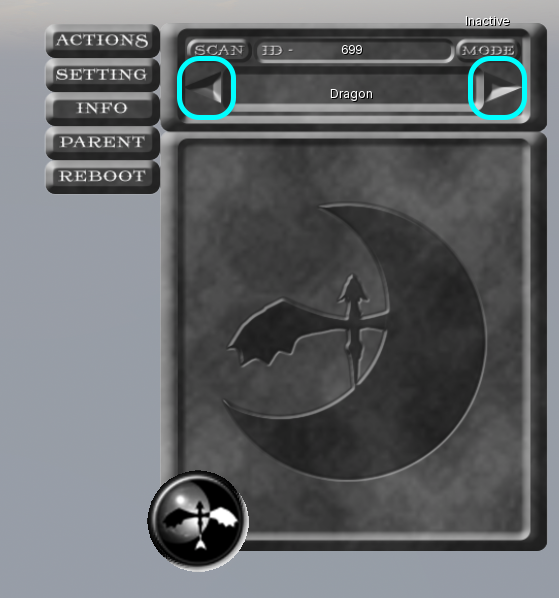
Now we have a dragon selected. You can Cycle through the dragons your
HUD has loaded using the left and right arrows on either side of the dragon's
name. You can also click on any dragon or egg in world and it will
be loaded into the HUD.
Now we have a dragon selected. You can see all of its info when you look at the info tab.
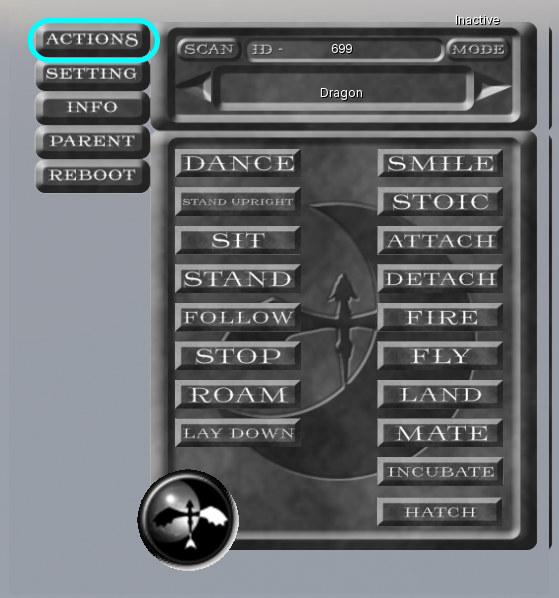
The next section to note is the Actions Tab. Inside this tab are all of the actions dragon is currently capable of doing.
These include:
-Dance : A cheeky little dance number.
-Stand Upright : A standing pose on the hind legs.
-Sit : The dragon sits on its butt.
-Stand : Basic four legged standing pose.
-Follow : a dragon rezzed out on the ground will walk behind you.
-Stop : Stops the dragons current movement, being follow or roam.
-Roam : Lets a dragon move around within its range, either walking or flying.
-Lay Down : A pose where the dragon will lay down on the ground.
-Smile : Make the dragon Smile.
-Stoic : Resting Face pose.
-Attach : Call the dragon to land on your left arm. (NOTE: this will attach the dragon to your avatar. YOU MUST USE DETACH TO REMOVE IT or the dragon will get lost.)
-Detach : The only safe way to remove a dragon from sitting on your arm.
-Fire : Make your dragon breath fire.
-Land : makes a flying dragon land. (NOTE: a dragon that is too high up will try to land, but will end up walking in the sky.)
-Mate : currently the mating is all manual. You will need to select the male, hit this action, select the female, and hit this action again.
-Incubate : Start the incubation process for a new dragon egg.
-Hatch : hatch a dragon egg.
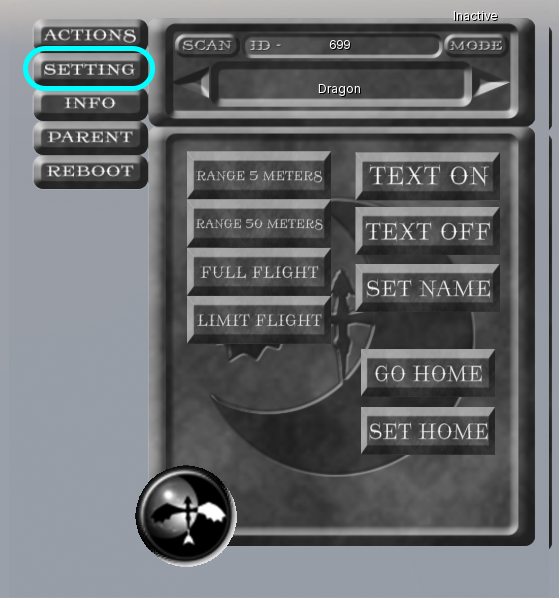
The next section to note is the Settings Tab.
The settings here are:
-Range 5 Meters : Sets the range to 5 meters from its home position.
-Range 50 Meters : Sets the range to 50 meters from its home position.
-Full Flight : Sets the dragon to be able to fly as high as the range is set to.
-Limit Flight : Limits the dragon to fly about shoulder height above the ground.
-Text On : turns on the hover text for the selected dragon.
-Text Off : turns off the hover text for the selected dragon.
-Set Name : Pops up a text input box allowing you to set the dragon's name.
-Go Home : Send the dragon to its home position. (NOTE: wherever a dragon is rezzed or DETACHED USING THE HUD will be it's home position. )
-Set Home : Sets the dragon's current location to its new home.
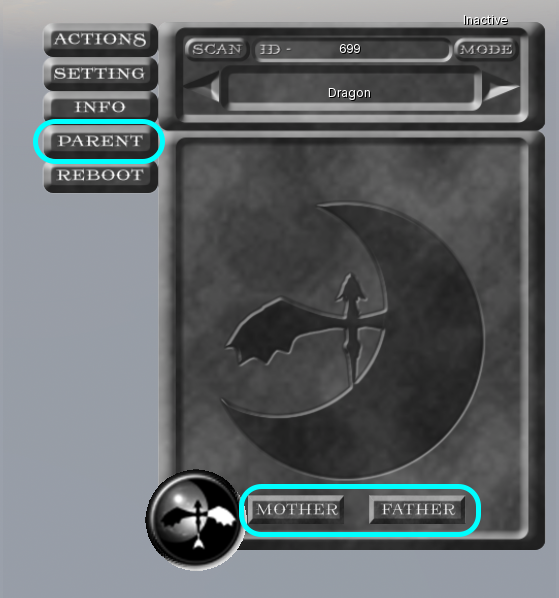
The next section to note is the Parent Tab.
The selected dragon you currently have loaded will show its parent's info here.
IF it has parents, when you click the mother or father buttons
highlighted at the bottom, the info for which ever one you
clicked will appear in the info panel.
The final thing to cover in the HUD is the Mode button.
This is the button on the top right of the scanning panel.
This button controls the tracking "Green Triangle".
It has a couple options. When you scan, it will say "Tracking"
over the button in hovertext. This will tack the dragon you select with
the arrows. If you hit the "Mode" button, it will change to inactive,
and disable the tracking marker (green triangle).
Pressing mode again will enable "Auto Mode".
While in Auto Mode, the tracking marker will automatically load the
nearest dragon in front of your avatar.
So now we have covered the HUD. It can be hiddin by clicking the big round
logo on the bottom left.
And as a side note, Any dragon rogue or egg can be touched for 2 seconds and it will
give you the backup menu pop up. This allows some settings if you haven't got the HUD
on and just need to do something real fast.